

Game Mode and GPU scheduler settings in Windows are important tools to optimize game performance. How do these features work in 2025, how to enable them, and what effects do they have on FPS?
WHAT IS GAME MODE IN WINDOWS?
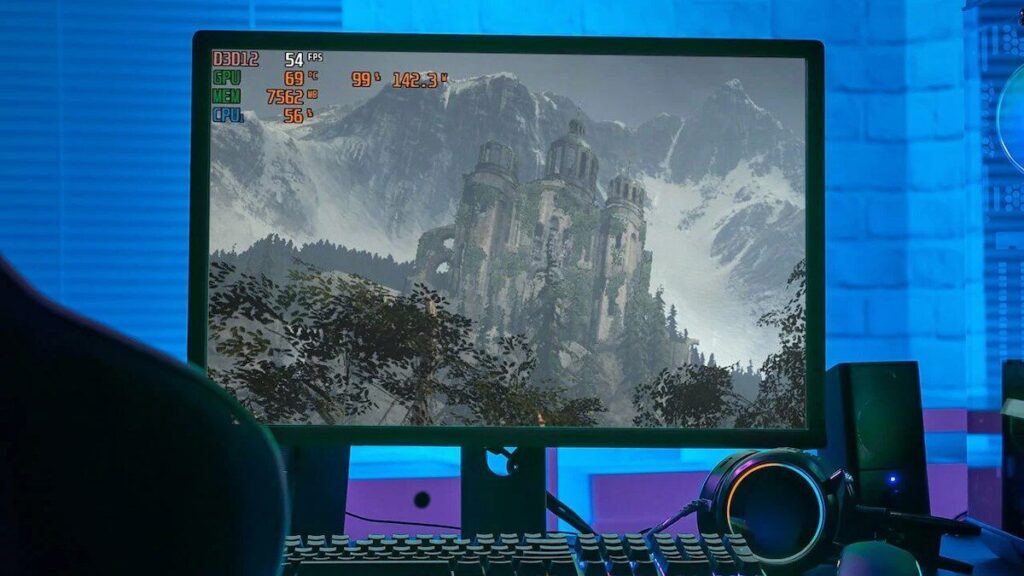
Game Mode in Windows 10 and 11 adjusts system resources to prioritize the game while playing. This minimizes unnecessary background processes and maximizes CPU and GPU resources for the game.
ADVANTAGES OF GAME MODE
- Directing CPU and GPU resources to the game.
- Reducing the performance impact of background applications.
- System optimization for uninterrupted and stable gaming experience.
- Preventing updates and notifications during gameplay.

HOW TO ACTIVATE GAME MODE
- Go to Settings > Gaming > Game Mode menu.
- Enable the “Game Mode” option.
- Windows will automatically activate Game Mode when a game is launched.

WHAT ARE GPU SCHEDULER SETTINGS?
GPU schedulers determine how graphic processes are synchronized between the CPU and GPU. Windows 11 and newer GPU drivers feature the “Hardware-accelerated GPU scheduling” option.
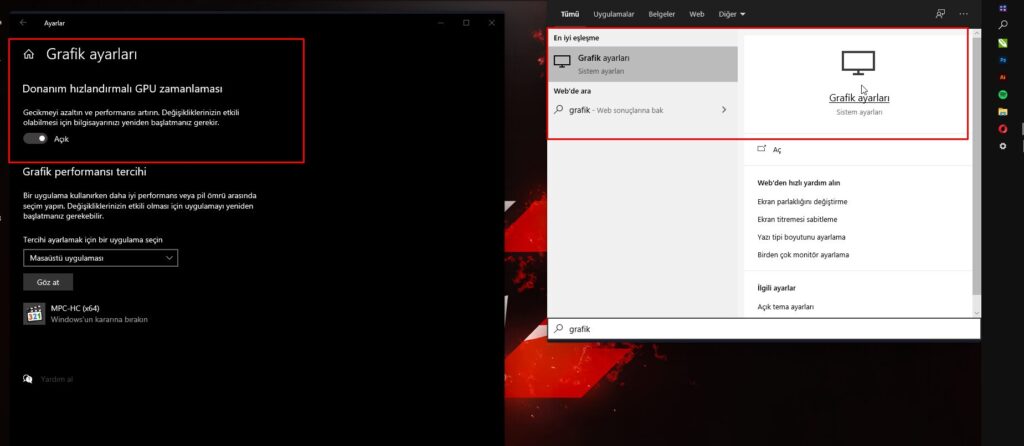
HARDWARE-ACCELERATED GPU SCHEDULER FEATURE
- It allows the GPU to work more efficiently by reducing CPU load.
- It reduces latency and increases FPS.
- Performance improvements are observed, especially on low to mid-range systems.
HOW TO ENABLE IT?
- Go to Settings > System > Display > Graphics Settings menu.
- Enable the “Hardware-accelerated GPU scheduling” option.
- Restart the system.
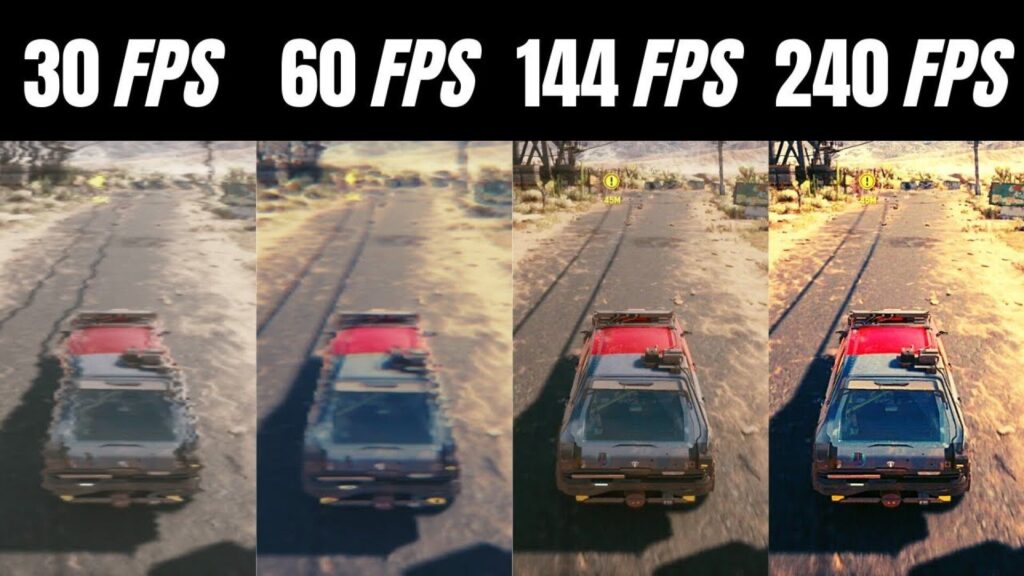
GAME MODE AND GPU SCHEDULER COMBINATION
When used together, background load is reduced, and GPU-CPU coordination is improved. This results in higher FPS and stable frame rates in games.
EFFECTS ON PERFORMANCE
- FPS increase can vary between 5-15%.
- Especially noticeable in CPU-bound games.
- Provides low latency and smooth gaming experience.
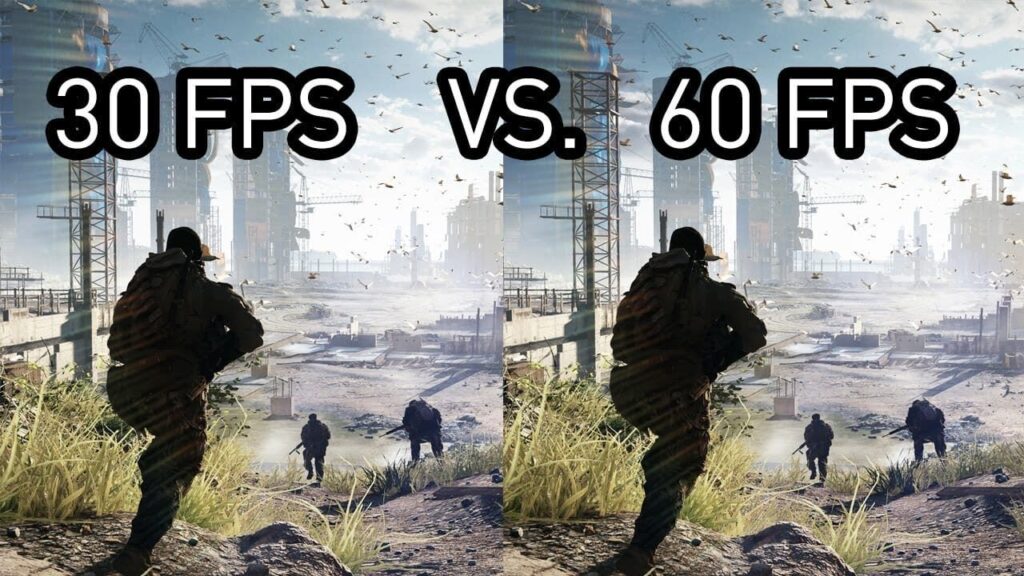
SUMMARY AND RECOMMENDATIONS
- Be sure to activate Game Mode and GPU scheduler features in Windows.
- Using the latest Windows version and GPU drivers improves performance.
- Conduct performance tests to observe their impact on your system.
