
If your computer overheats while gaming and the fans go crazy, be careful! In this article, we thoroughly discuss why computers overheat and the most effective cooling methods for gamers.
Modern games push the limits of computer hardware, causing significant heat generation in components such as the processor, graphics card, and others. Especially in summer or poorly ventilated environments, computers overheating is a common issue. This overheating not only leads to performance loss but can also shorten the hardware’s lifespan in the long run. So, why does a computer overheat while gaming and how can this be prevented? Here are the answers:
WHY DOES A COMPUTER OVERHEAT?
Heating occurs when hardware components consume excess energy and convert this energy into heat while operating under high performance.
MAIN CAUSES OF OVERHEATING:
- High Hardware Usage: Especially AAA games push the CPU and GPU to full capacity.
- Inadequate Cooling: Fewer fans or weak airflow make it difficult for the system to cool down.
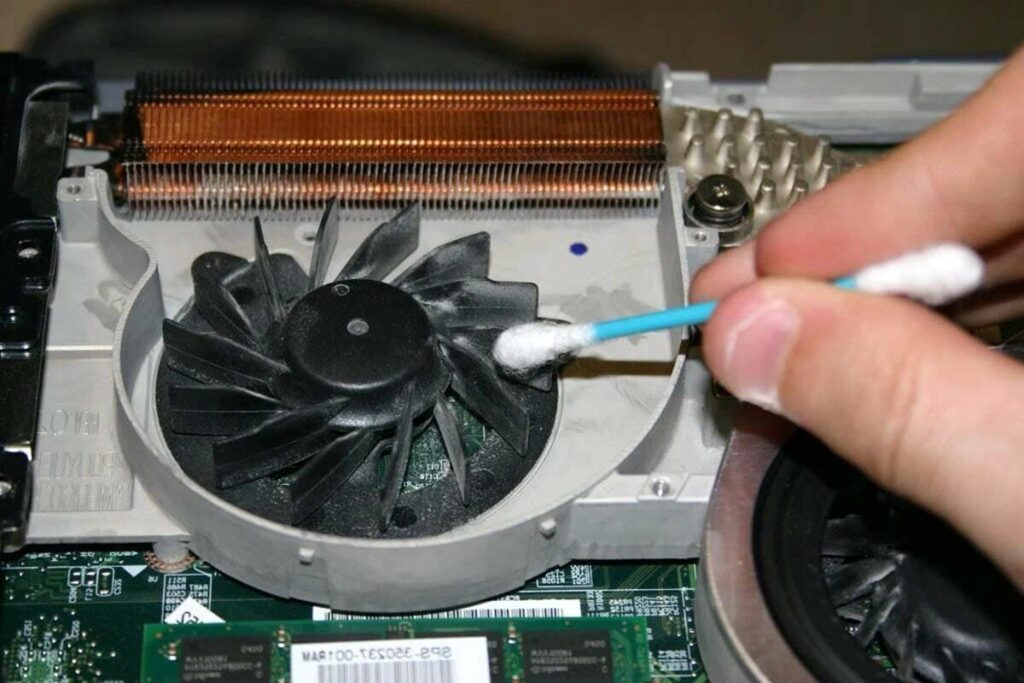
- Dust and Dirt Accumulation: Dust clogging the fans hinders airflow.
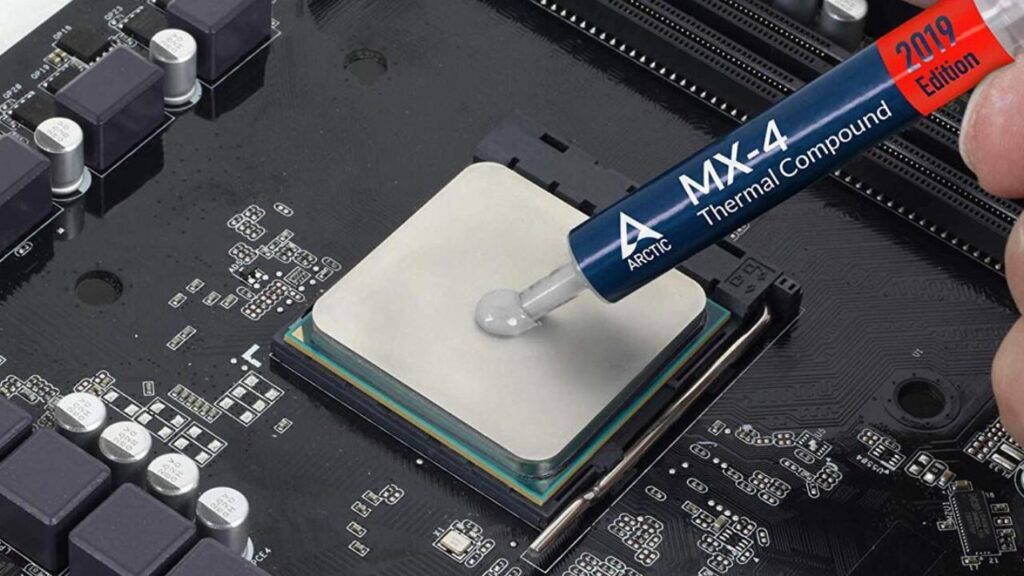
- Drying of Thermal Paste: Thermal paste losing its properties slows down heat transfer.
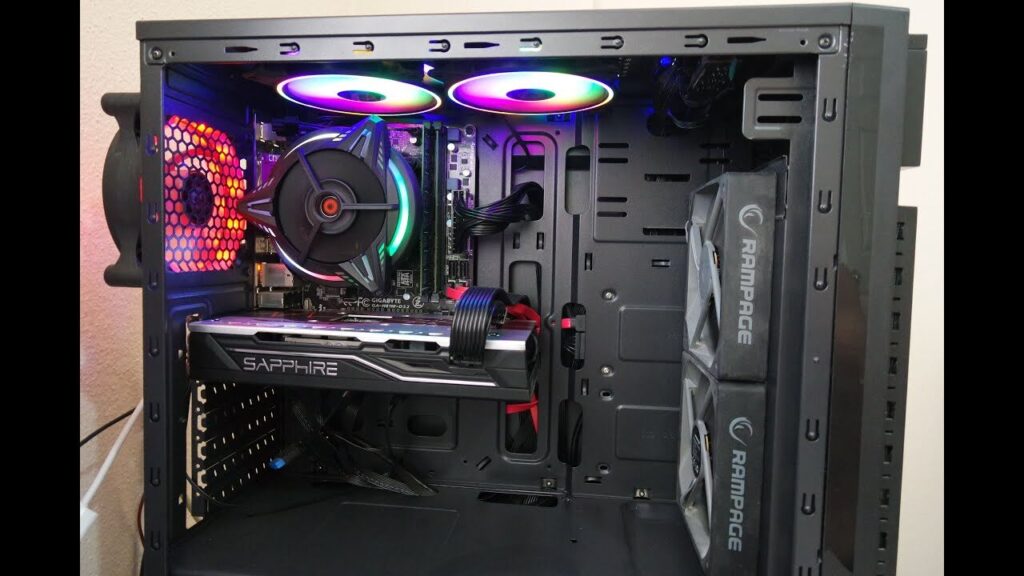
- Poor Case Ventilation: Trapped hot air inside cannot escape.
- High Ambient Temperature: Especially in summer, room temperature affects the system.
- Background Applications: Unnecessary software strains the system.
HOW DOES OVERHEATING AFFECT PERFORMANCE?
An overheating system automatically reduces component speeds through “thermal throttling.” This can lead to issues in games such as:
- Decreased FPS
- Stuttering
- Increase in response time
- Game crashes
and other problems.

8 EFFECTIVE WAYS TO COOL YOUR COMPUTER WHILE GAMING
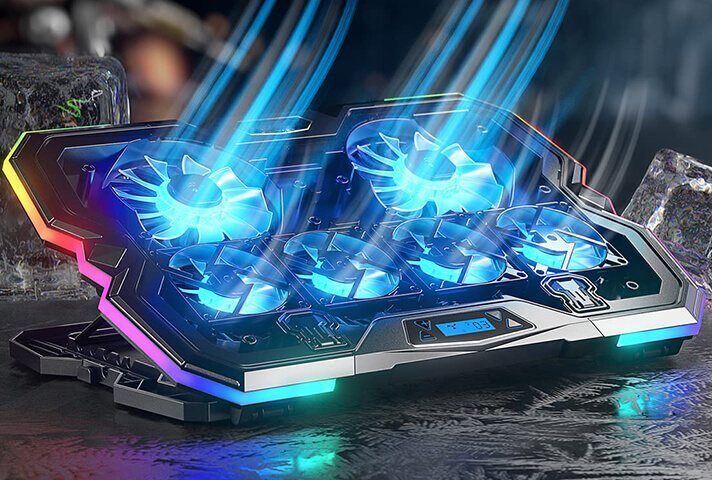
1. USE A COOLER
External fan-supported stands, especially for laptops, significantly reduce heat.
2. CLEAN FANS AND REMOVE DUST
Clean your computer from dust at least twice a year. If fans, grilles, and air ducts are clogged, they will not work efficiently.
3. RENEW THERMAL PASTE
Professional thermal paste replacement every 2-3 years improves heat conduction.
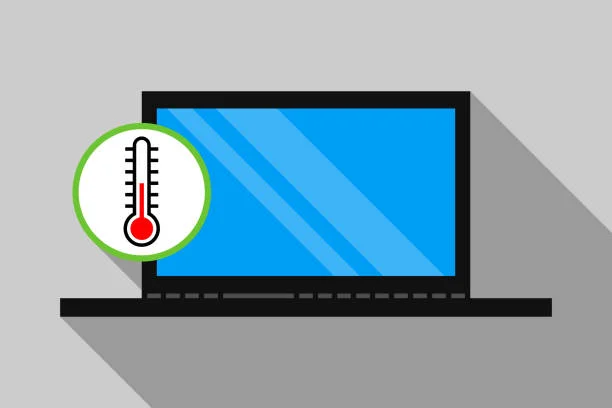
4. CLOSE BACKGROUND APPLICATIONS
Stop software consuming CPU and RAM from the task manager.
5. USE FAN CONTROL SOFTWARE
Control heat by increasing fan speeds with software like SpeedFan, MSI Afterburner.
6. IMPROVE CASE VENTILATION
Enhance airflow by adding extra fans for a “front in, back out” air circulation. A positive pressure air system also reduces dust intake.
7. PLAY IN A COOL ENVIRONMENT
Lowering the room temperature where you play games can positively affect your performance.
8. ENABLE COMPUTER PERFORMANCE MODE
The “High Performance” power plan shortens system response time while actively using the cooling system.
HOW TO MEASURE COMPUTER TEMPERATURE?
You can instantly see the temperatures of the processor, graphics card, and other components with the following programs:
- HWMonitor
- MSI Afterburner
- CoreTemp
- HWiNFO
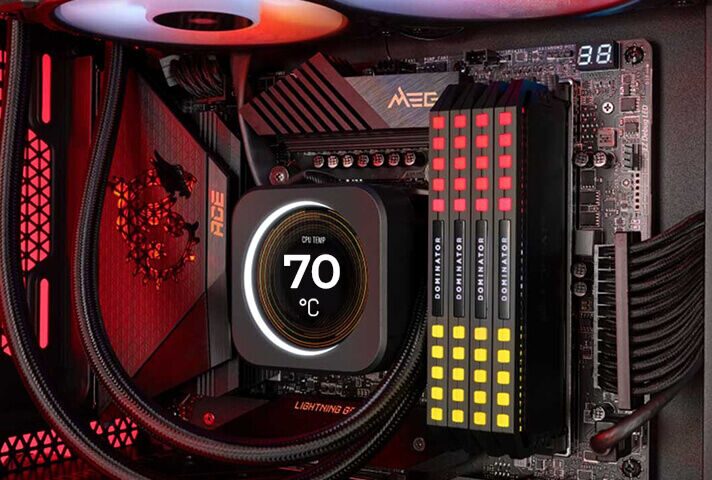
WHAT ARE NORMAL GAMING TEMPERATURES?
| Component | Normal Gaming Temperature |
|---|---|
| CPU | 60°C – 85°C |
| GPU | 65°C – 88°C |
| SSD | 30°C – 60°C |
| Motherboard | 30°C – 70°C |
Temperatures above 90°C indicate danger. Operating constantly at these levels shortens the hardware lifespan.
CONCLUSION
Computer overheating is a significant issue for gamers in terms of both performance and hardware health. However, with regular maintenance, conscious usage, and proper accessory choices, it is possible to overcome this problem. By applying the methods above, you can achieve a more stable, cooler, and more efficient gaming experience.
