
Days of CDs & DVDs are vanishing, as the advancement in technology is taking a leap. Those were the Days where we obviously need to have a CD or DVD to burn Windows OS .ISO files. The only possible ways to Boot Windows OS to Install, Format or Repair PC was from a CD or DVD. But now Software’s have become initiatives to reduce Human Work and cost. Now we can directly Burn the Windows OS .ISO to USB drives itself. Isn’t that good to hear, because it has become an Honeycomb initiative. Most of the users have been in a situation where they always have to rush to their Computer Stores to get a CD or DVD in order to burn their Windows OS.
Try: [How-To] Open .IMG Image Files in Windows 8 without Any Software
We need not brag our self’s anymore to stores for Purchasing a CD or DVD in order to burn the Windows OS. Now we can Burn the Windows OS .ISO to USB device directly, and boot the USB to install windows. Even Netbook users can be benefited with this, as they do not have DVD Drive in order to install Windows. But they could utilize these methods to Burn Windows 7 OS .ISO files to USB Drive and Boot them directly on their Netbook. Well let’s start with How To Burn Windows 7 OS .ISO to USB or DVD.
Steps on How to Burn Windows 7 OS .ISO to USB or DVD:
STEP 1: Download & Install Windows 7 USB DVD Download Tool
STEP 2: Open the Windows 7 USB DVD Download Tool
Note: Insert the USB / DVD at this stage.
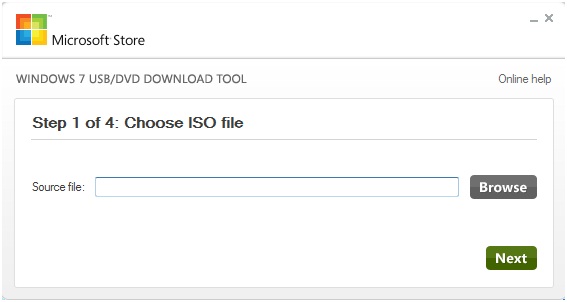
STEP 3: Click on “Browse” & select the .ISO File which you wish to BURN into USB/DVD.
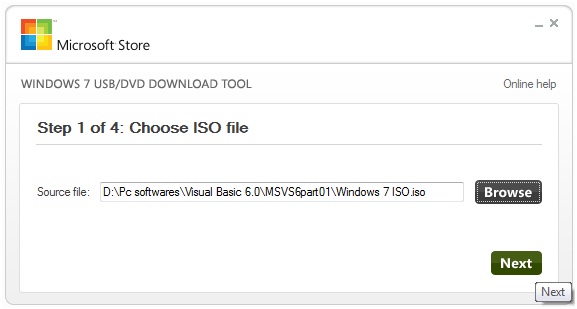
STEP 4: After selecting the .ISO file, click “Next”
STEP 5: Now Choose USB Device or DVD from the Media Type Where you wish to Burn the .ISO
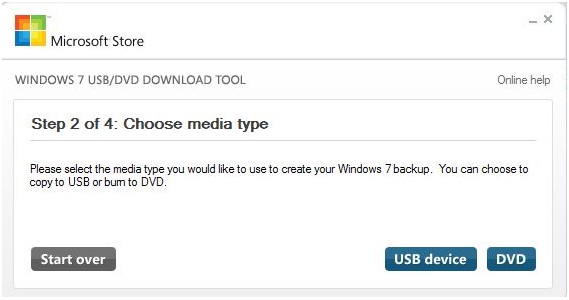
NOTE: I have choose “USB Device”
STEP 6: Select the USB Device Path where you wish the .ISO files to Burn and click on “Begin Copying”.
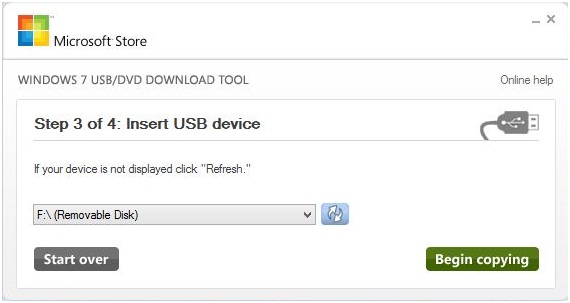
STEP 7: Wait for the Process to Complete. You are done creating a Bootable Windows OS on USB Device.
