
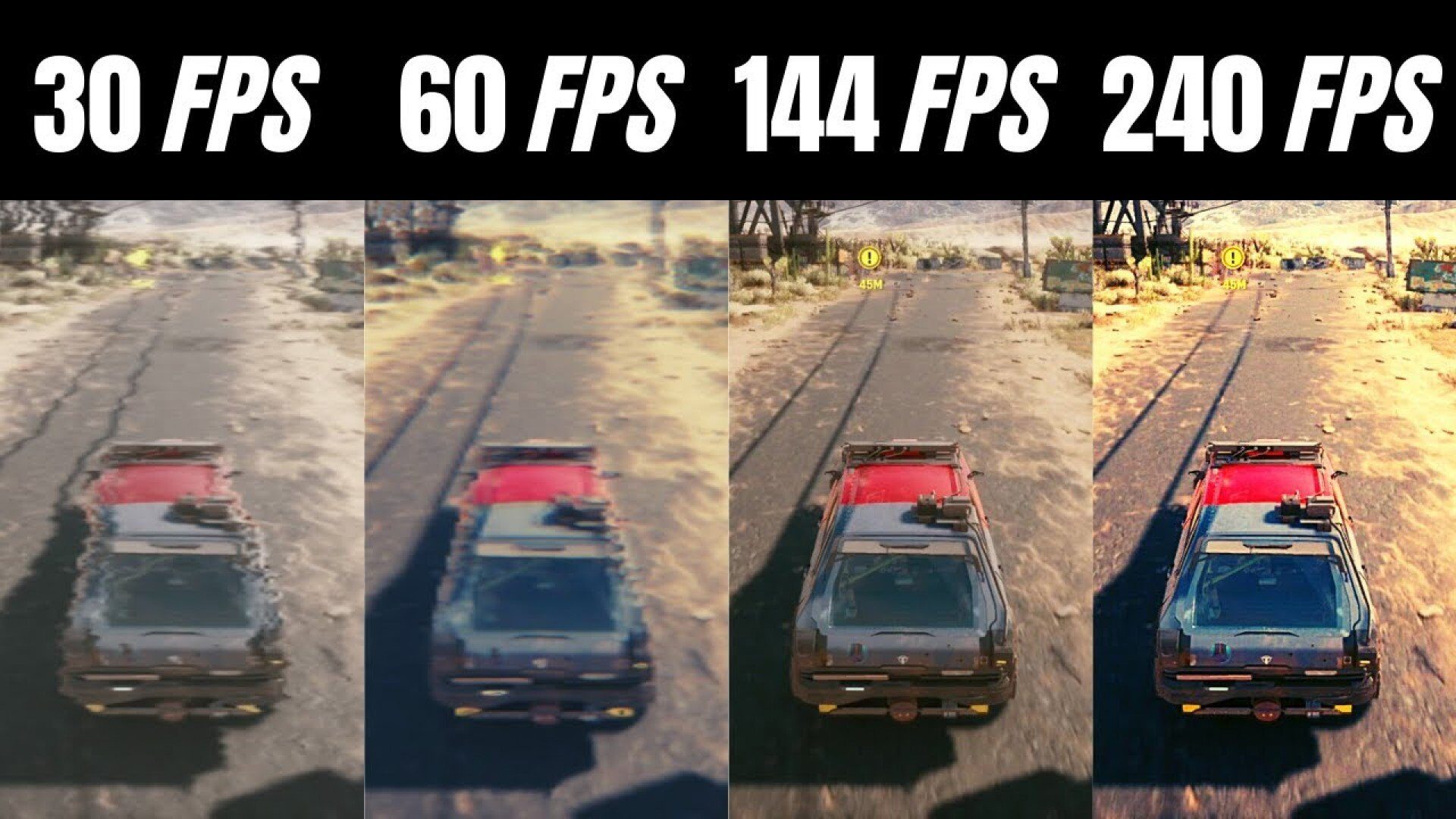
Are you getting low FPS in games? You can easily boost your gaming performance with some hidden settings within Windows. In this guide, we will explain step by step the most effective Windows settings you can apply to increase FPS without using additional software.
Having a powerful graphics card or processor is not enough to achieve high FPS in games. Windows itself can limit performance with many features that consume resources in the background. Fortunately, most of these features can be turned off or optimized by the user. In this content, we show you how to easily apply Windows settings that will enhance your gaming performance.
🛠️ Windows Settings to Apply for Increasing FPS
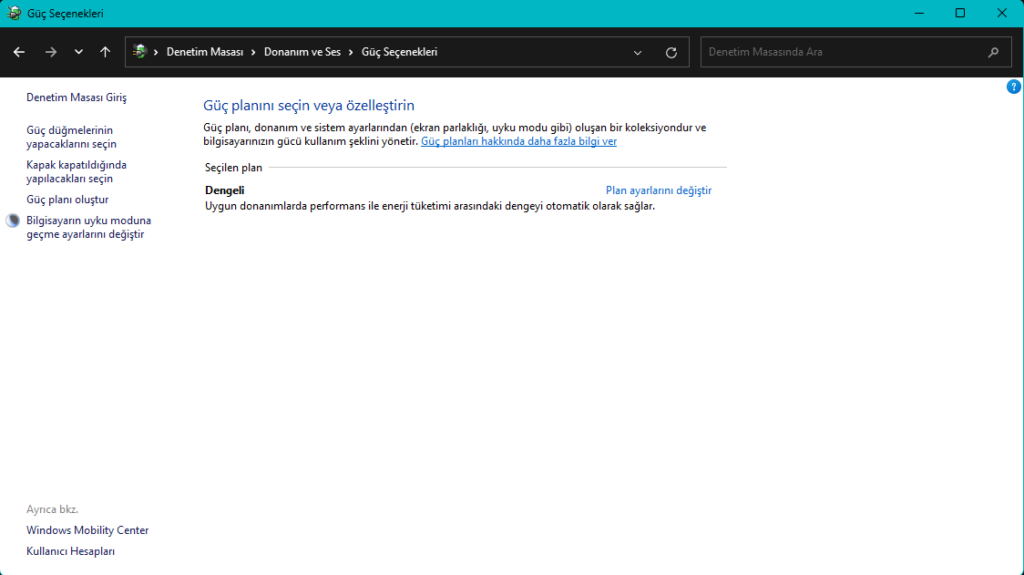
1. ⚡ Set Power Plan to “High Performance”
- Path: Control Panel > Hardware and Sound > Power Options
- Action: Select the “High Performance” plan.
- Why It Matters? Ensures hardware operates at full capacity, especially boosts processor performance.
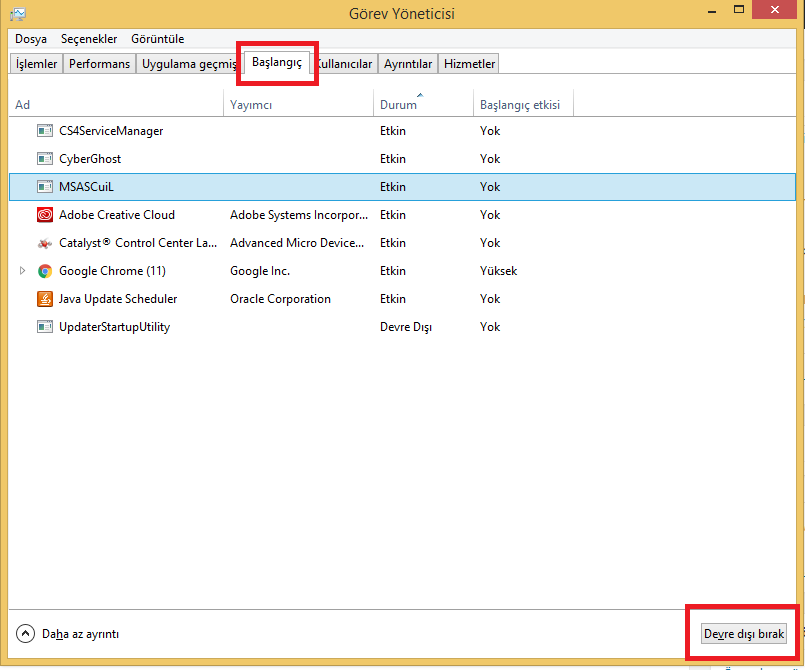
2. 🧹 Close Background Applications
- Path: Task Manager (Ctrl+Shift+Esc) > Startup tab
- Action: Disable unnecessary programs.
- Benefit: Reduces RAM and CPU usage, prevents stuttering.
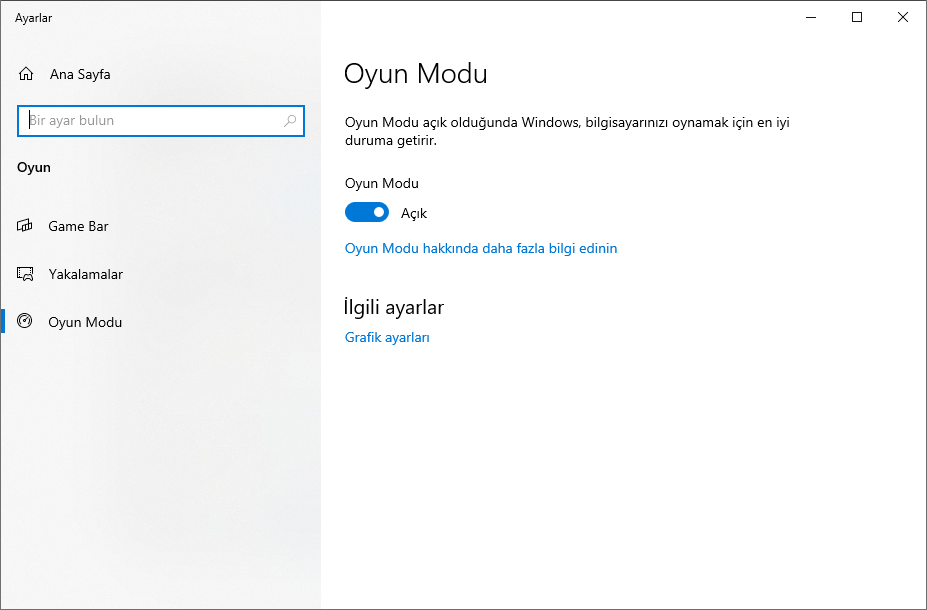
3. 🎮 Enable Windows Game Mode
- Path: Settings > Gaming > Game Mode
- Action: Turn on Game Mode.
- Gain: Prioritizes resources for games, restricts background processes.
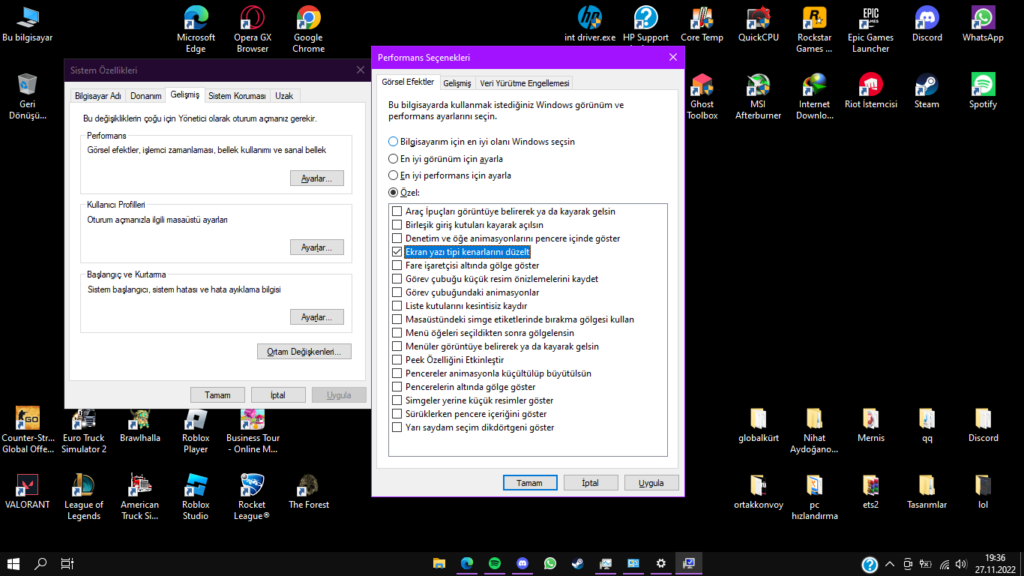
4. 🪟 Turn Off Visual Effects
- Path: Start > “System Properties” > Advanced > Performance > Settings
- Action: Select the option “Adjust for best performance”.
- Effect: Interface effects are disabled, resources are directed to games.
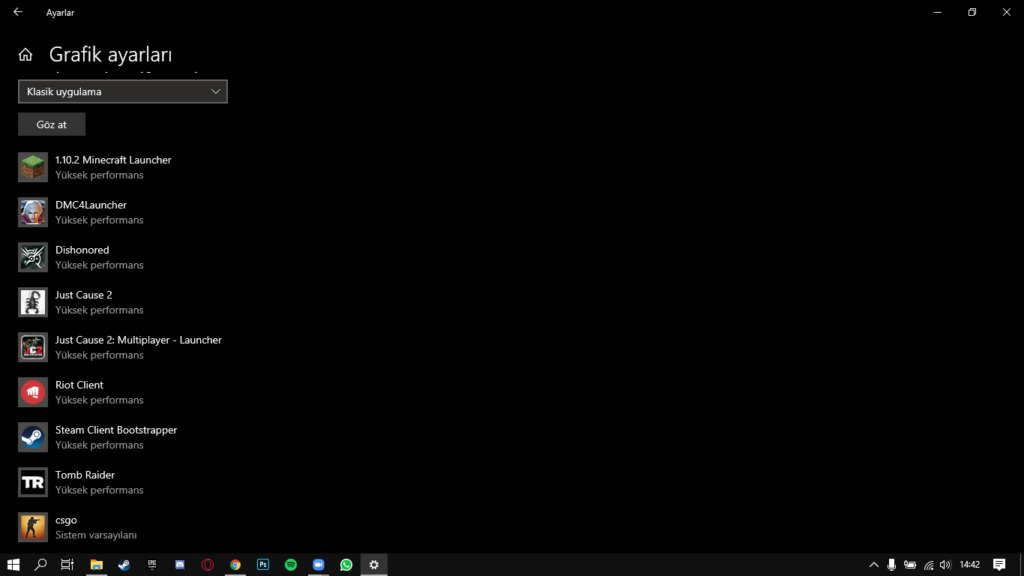
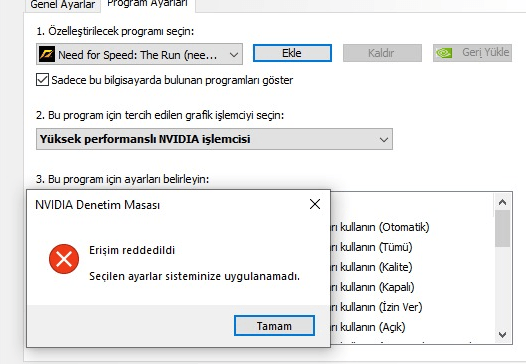
5. 🧠 Run Games with External Graphics Card
- Path: Settings > System > Display > Graphics Settings
- Action: Select “High Performance” (external GPU) for games.
- Benefit: Operates with a more powerful graphics card, provides FPS increase.
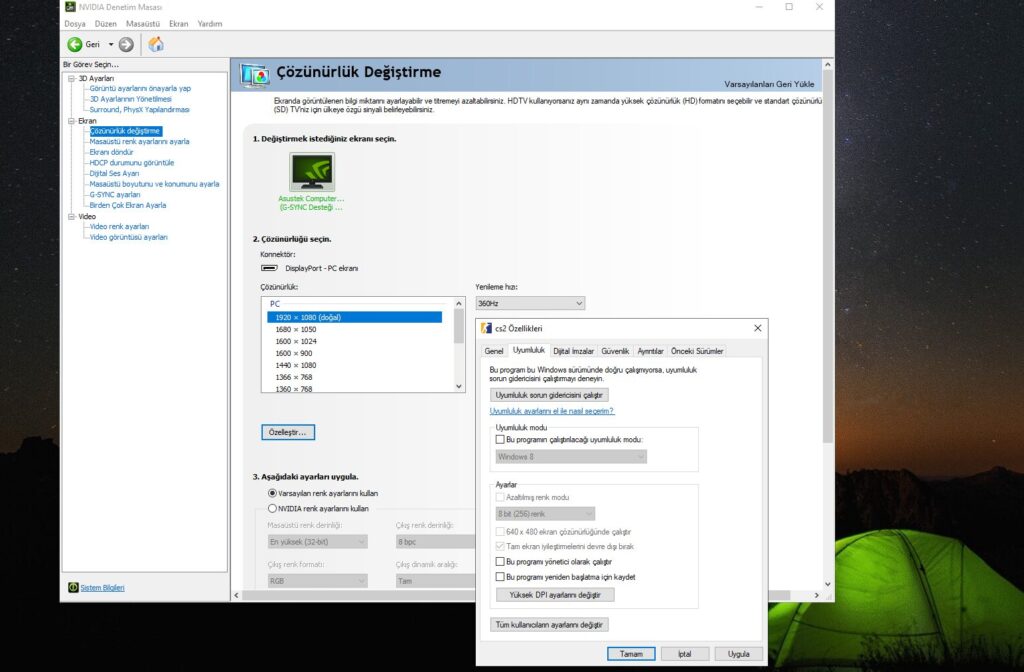
6. 🧷 Disable Full-Screen Optimization
- Path: Game .exe file > Right-click > Properties > Compatibility
- Action: Check the box “Disable full-screen optimization”.
- Gain: Reduces FPS fluctuations and delays.
7. 🌐 Manually Manage Windows Updates
- Path: Settings > Update & Security > Advanced Options
- Action: Limit bandwidth, turn off automatic updates.
- Benefit: Prevents sudden FPS drops during updates.
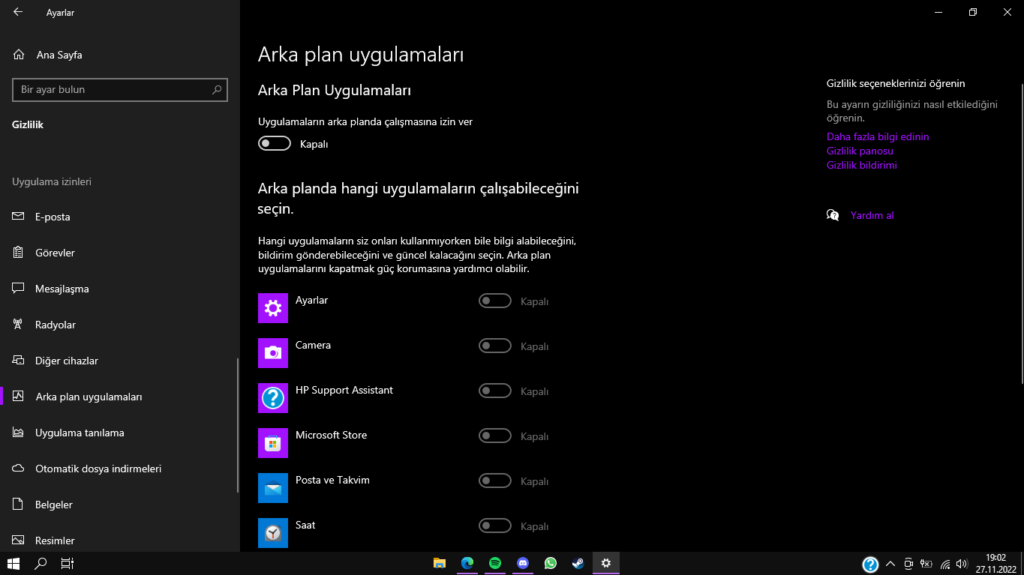
8. 🔕 Turn Off Notification and Search Features
- Path: Settings > Privacy & Security > Search Permissions and Notifications
- Action: Turn off unnecessary suggestions, history, and notifications.
- Result: Reduces background services, stabilizes FPS.
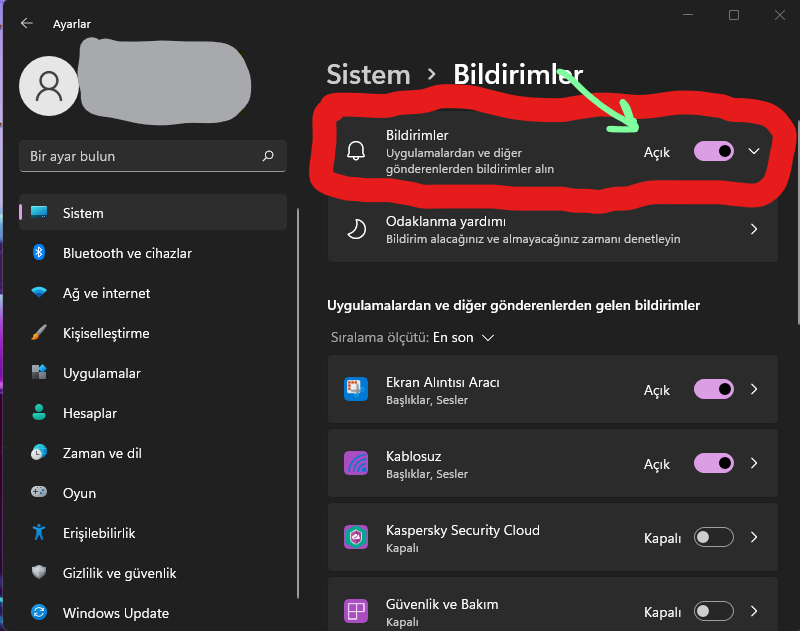
Small Adjustments, Big Differences
By applying these Windows settings, you can achieve noticeable FPS increases, especially on mid and low-end systems. The aim of each setting is to direct system resources to games as efficiently as possible. After completing all processes, don’t forget to restart the system and measure the difference by tracking FPS in-game.
🕹️ Remember: Hardware may be powerful, but without software optimization, full efficiency cannot be achieved!
